Object management
All objects (objects, Explorations, Analyses) in DEAP are organized into ‘My’ hubs (ex- My objects). These hubs are the base organizational space for all your work completed in DEAP. These are also where you can perform additional management activities with your object such as naming & labeling, editing, sharing, and additional organizational activities such as archiving, locking, and organizing into larger units called ‘Projects’. When the below documentation refers to an ‘Object’ it is refering to an action that can be performed with your objects, explorations, or analyses.
Duplicate
To create a copy of an object click additional actions () in the My Dataset/Exploration/etc tab and then select ‘ Duplicate’. This will create a copy of the object as it exists now, it will get a new creation date, and will exist independently of the source object; meaning any update to either object will not impact the other.
Delete, archive, lock
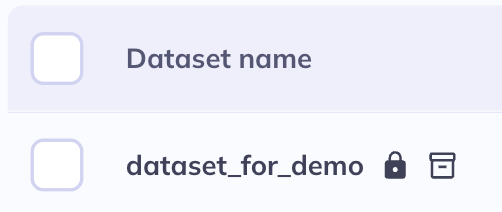
A locked and archived dataset
Objects can be managed in various ways to suit different stages of the research data-cycle. Deleting, archiving, and locking databases can be completed from the additional actions () menu. Projects cannot be locked or archived but they can be deleted. The status of objects, with regards to locking and archiving, is indicated next to the project name.
Deleting ( ) an object will remove it from your DEAP profile permanently. Deleted objects cannot be retrieved. Deleting an object is ideal for objects that were never used, contain mistakes, or were replaced with new working object
It is not advisable to delete objects that have ever been used for publication, presentation, or public purposes as the history of the objects will not be available and may not be able to be re-created. Instead we recommend locking and archiving objects utilized for research claims.
Archiving () an object is a way to remove it from the primary view of My Objects without deleting it, reducing clutter but retaining data. Archived objects can be unarchived, locked, edited, and organized; the same as non-archived objects. objects that are no longer of active use but that have historical use and value are good use cases for archiving. To toggle archived objects in and out of view in My Objects click the icon in the top right.
Locking () an object prevents it from having any changes occur, preserving a historical record overtime. Locking an object is useful for reproducible research and data transparency. Locking an object guarantees the exact version of data you used in an analysis is fixed at the point of time you created the dataset. Locked objects can still be shared, archived, duplicated, and downloaded. They can also be organized with changes to the labels and adding them to new projects. Locked objects cannot have any variables added or removed and they cannot be renamed. an object that is locked because it was shared with you will have a grey icon () as opposed to a black one () which indicates you locked the dataset.
A quick way to delete, lock, or archive an object (or set of objects) is to click the box on the left of their row. A dialog box will be launched where you can quickly perform your action.

Share object
Objects can only be shared with users with a data use agreement. If you send a link to an individual without proper credentials they will not be able to see your dataset.
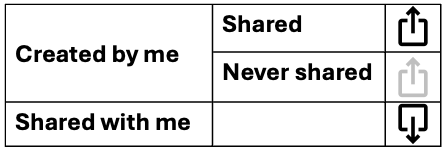
Share your objects from the Shared column in My objects or in the additional actions () menu. After you click share you will get a confirmation that you would like to share followed by a URL you can use to share the dataset. After the dataset has been shared the URL for sharing can be accessed again by clicking the icon in the My objects table. Objects that are downstream of a dataset (Explorations, Analyses, etc) will also share the associated dataset when you share the Exploration/Analysis.
The color and orientation of the icon is informative to the status of the dataset. If the icon is pointing down () an object was shared with you. If it is pointing up () you created the dataset. If the icon is grey () the dataset has never been shared.
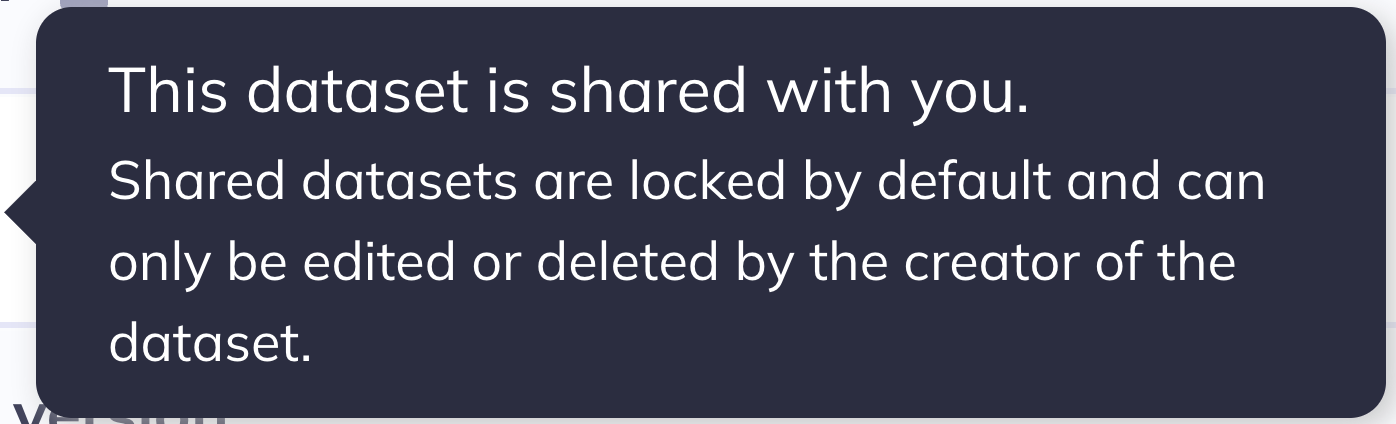
Shared objects contents and names will update automatically for any users they are shared with. All shared objects are locked for the recipient by default.
Create your own version of the objects by duplicating it. The duplicated version will not stay in sync with the shared objects.