Projects & labels
Users can organize their objects (datasets, explorations, analyses, etc.) using labels and project folders. Labels are similar to annotations or tags where you can mark objects with keywords or phrases to help find similar objects later. Projects are a broader organizational unit where you can cluster objects, similar to a folder. Projects may consist of multiple objects, each with their own labels, related to a single research project. All of your objects, and the projects and labels applied to them, can be found in My objects.
Labels
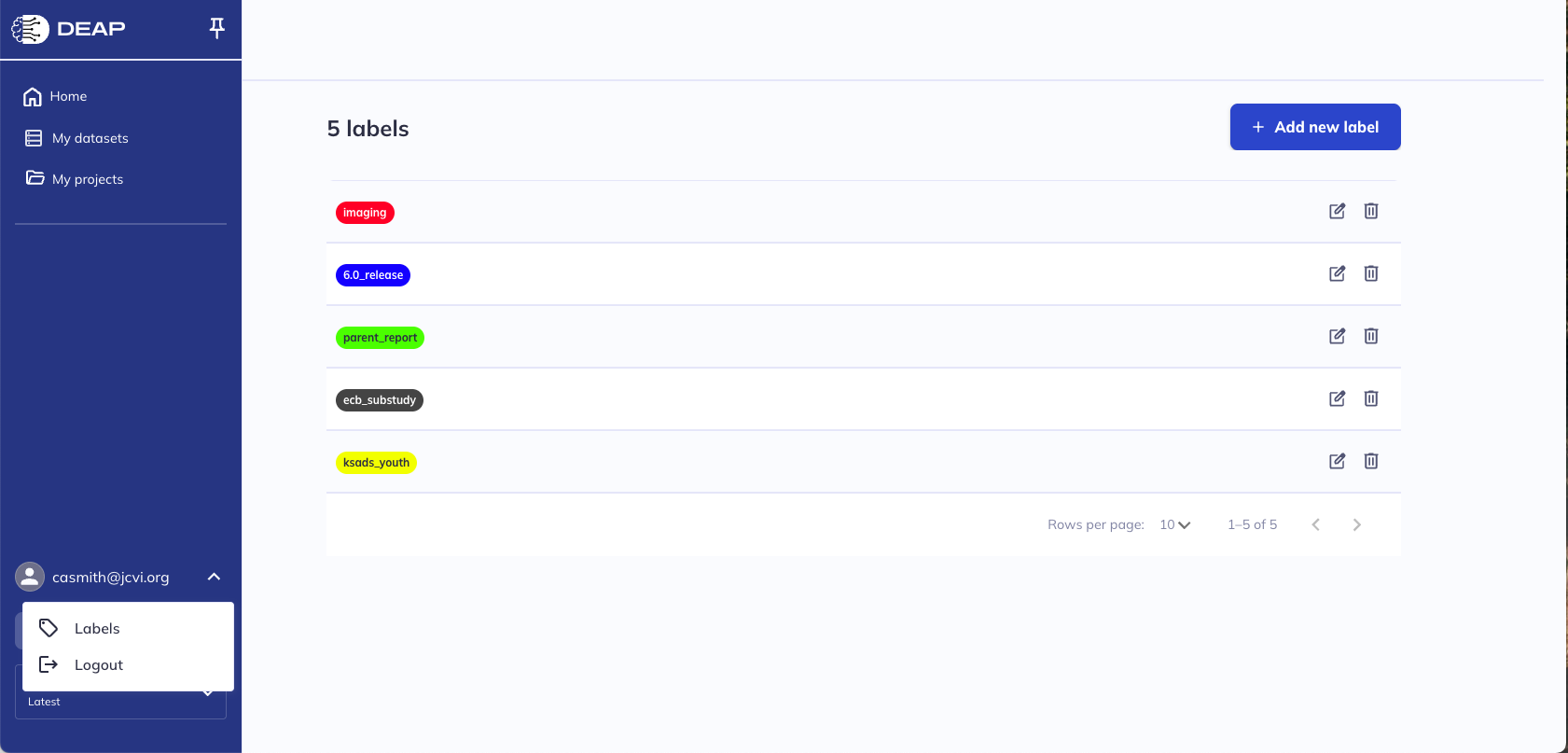
Create & manage your labels by clicking your profile icon (), and then selecting Labels (). Here you can create, delete, edit the name of, and color code all of your labels.
Labels can be applied to objects when creating an object, editing an object, or in the details () tab in My objects. New labels can also be made at the same time, but to apply color coding you must go back to your label management page.
Labels can also be added to projects. Project labels can be unique or the same as those applied to objects. To add labels to a project, open the project from My projects, click additional actions (), and then Edit labels ().
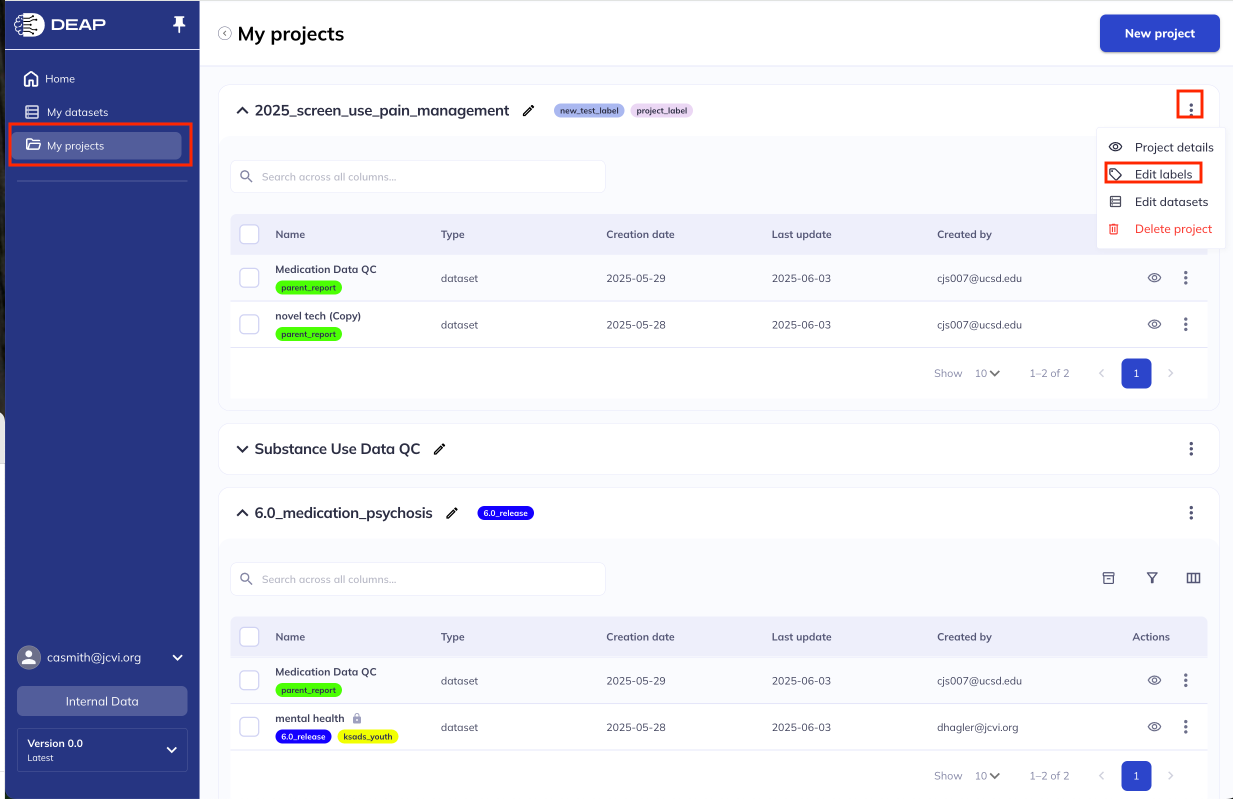
Editing project labels
My projects
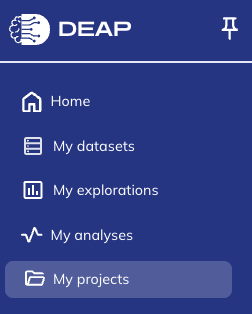
The My projects tab in DEAP allows you to manage your objects as related groups. Labels offer another level of organization for your projects and within the project (when applied to an object). Your projects are organized into collapsible levels, storing their objects and containing basic information about each component of the project, similar to the table in My objects. Datasets, explorations, and analyses can be organized into the same project, allowing related objects to be stored together.
Within My projects you can search your projects, re-organize projects (name & label), explore the components of each project, and the details of the objects that make up the project. Within a project, the icon allows you to take basic actions on project components (objects) such as archiving, deleting, and relabeling.
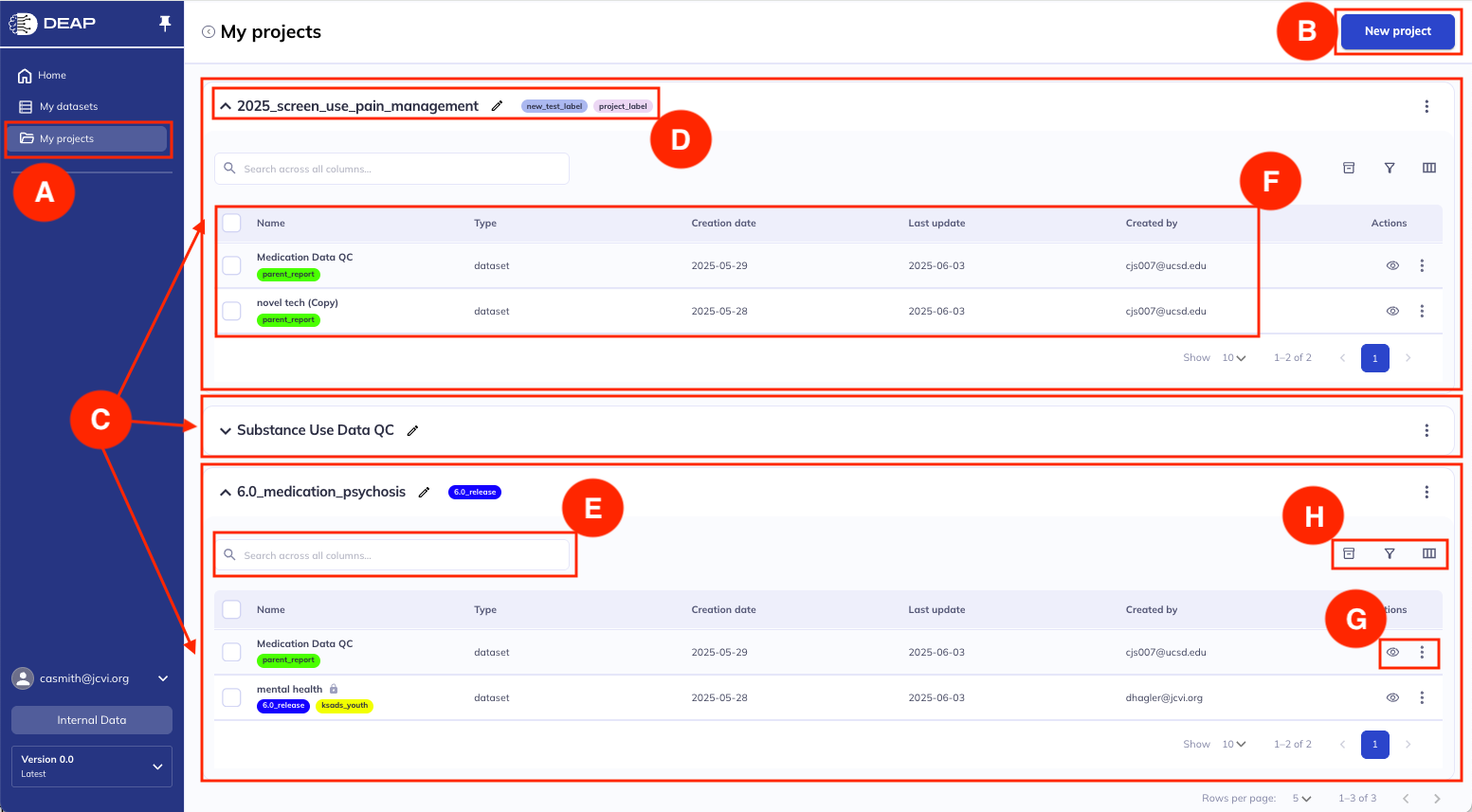
My projects page
A. My projects tab
B. Create a new project
C. Individual project folders
D. Project name & labels
E. Search within project
F. Project components (objects)
G. Actions for projects
H. Archive, filter, modify columns